Manage Clients
Creating a Client
Step 1: Navigate to the Clients section
Select an organization, then click Clients in the sidebar. Click New Client.
Step 2: Enter client details
Fill in the required fields:
| Field | Required | Description |
|---|---|---|
| Name | Yes | The client's display name. |
| Location | Yes | The client's location. |
| Point of Contact | Yes | Primary contact name. |
| Point of Contact Email | Yes | Primary contact email address. |
| Organization | Yes | The organization this client belongs to (pre-filled if creating from an org context). |
| Description | No | Additional notes about the client. |
| Receive Emails | No | Toggle to enable email notifications to client recipients. |
| Email Recipients | No | Email addresses that receive project and finding notifications (visible when Receive Emails is enabled). |
| Logo | No | Upload a client logo. |
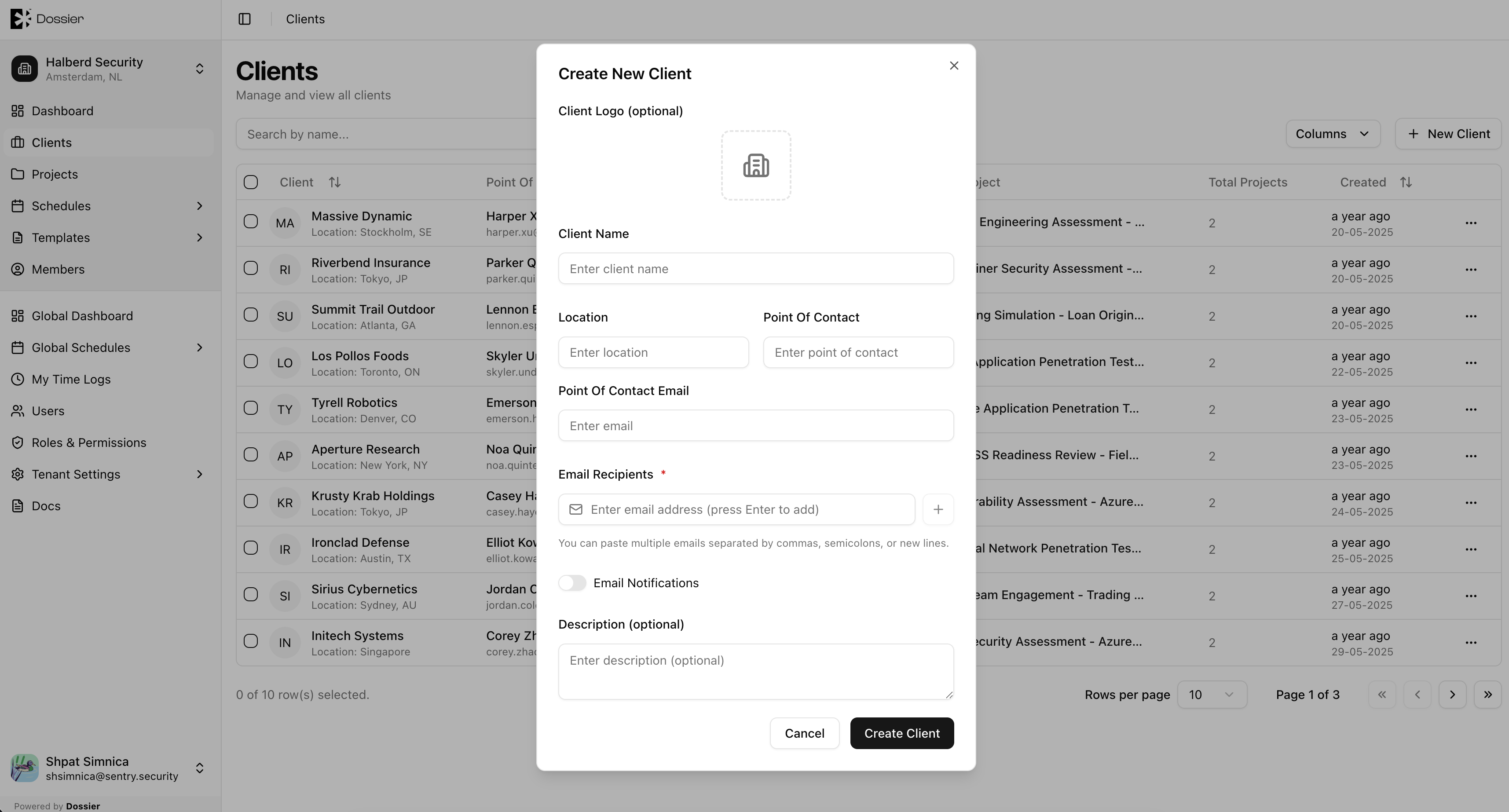
Be careful when adding email addresses to the Email Recipients field. These addresses receive automated notifications for project status changes, finding updates, and form submissions. Verify addresses before saving.
Step 3: Click Create
The client appears in the clients list. Click the row to open the client detail page.
Updating a Client
Step 1: Open the client
From the Clients list, click the client row.
Step 2: Navigate to Details
Click the Details tab in the section navigation, or use the row action menu to edit.
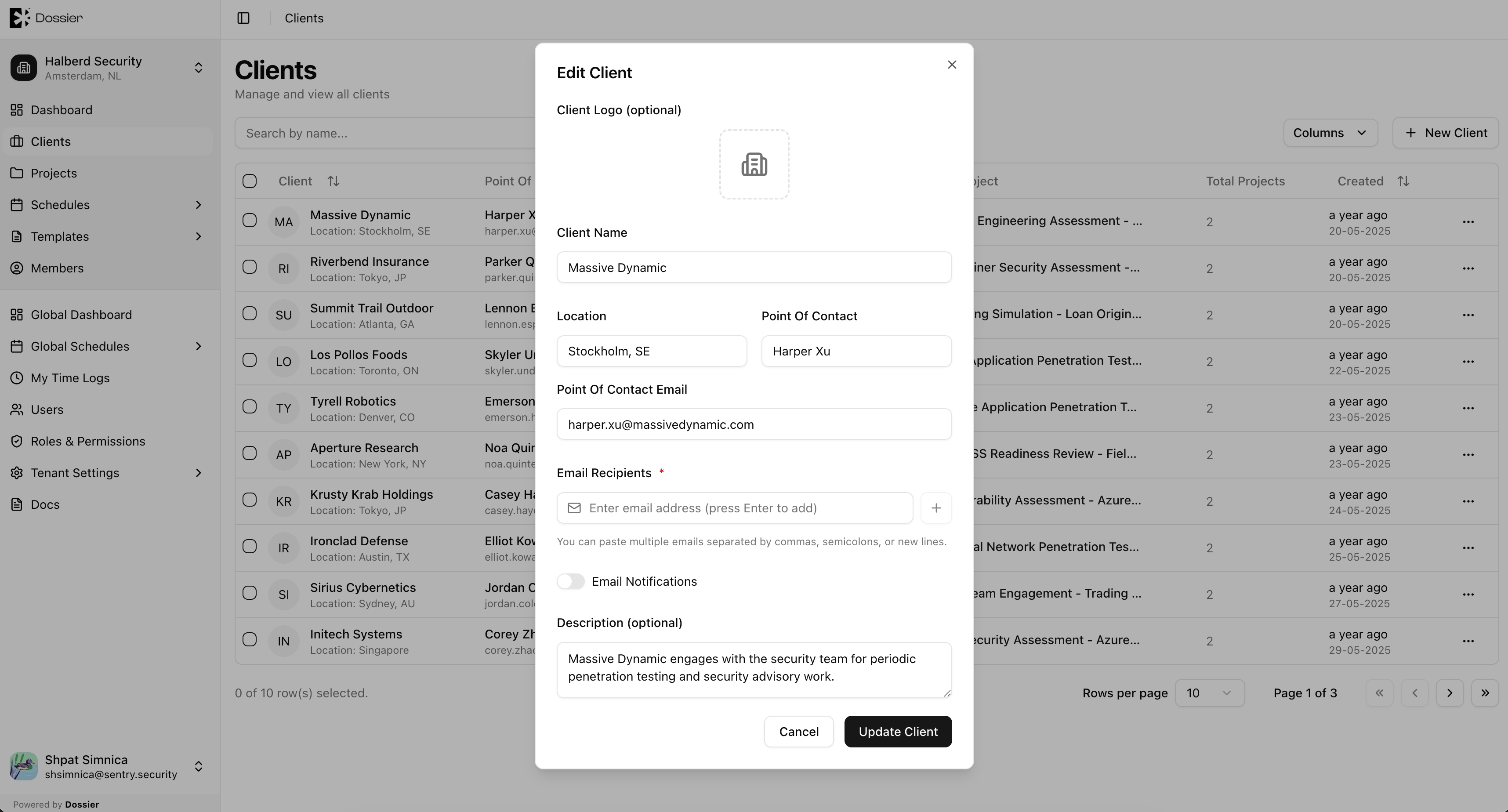
Step 3: Update fields and save
Modify the fields as needed and click Save.
You can also update a client from the Edit Client dialog accessible via the row action menu on the clients list.
Deleting a Client
Step 1: Go to client Details
Navigate to the client's Details tab.
Step 2: Click Delete
A confirmation dialog warns that all projects, findings, assets, and integrations under this client will be permanently deleted.
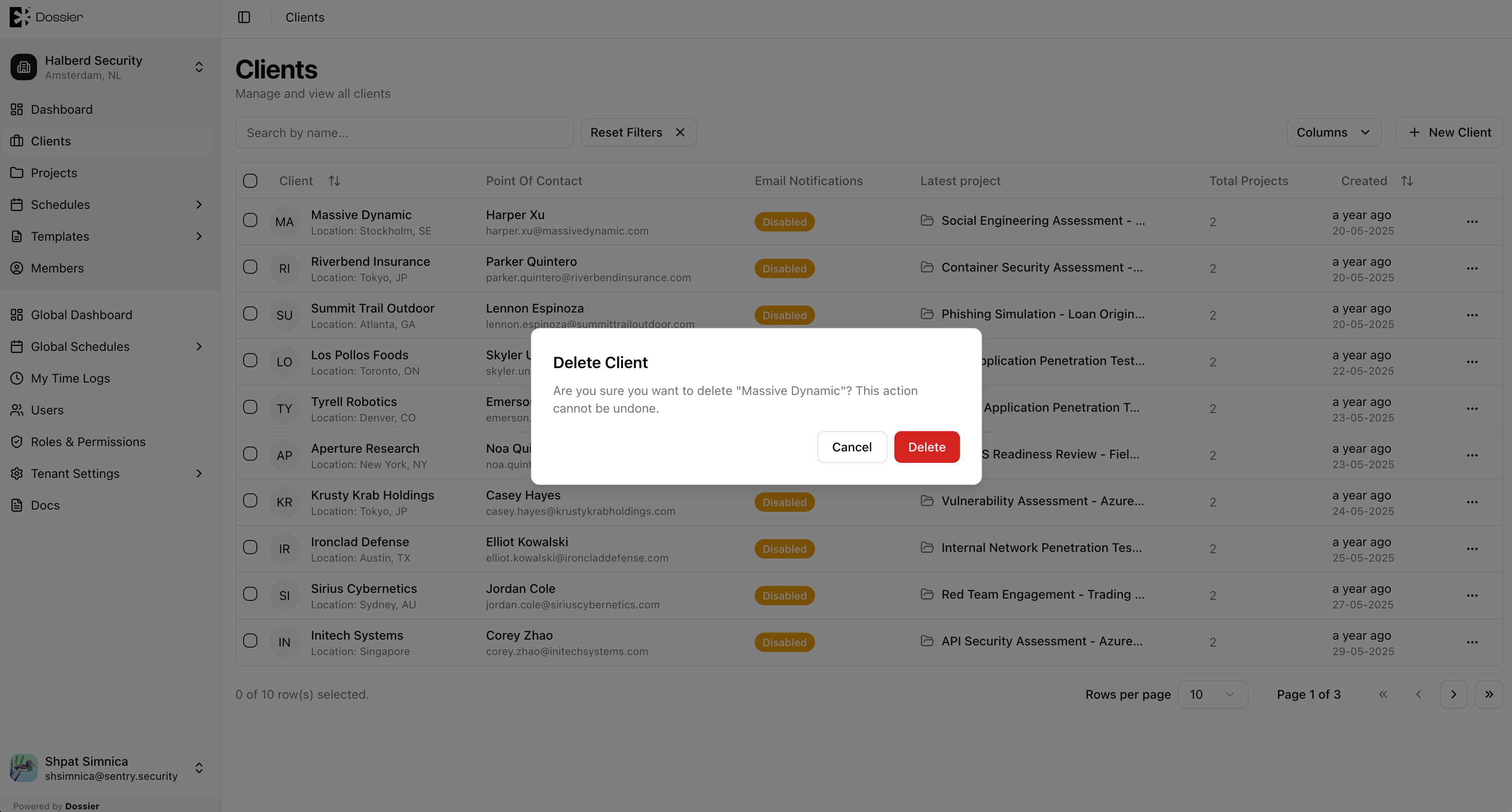
Step 3: Confirm
Click Yes to permanently delete the client and all associated data.
Deleting a client permanently removes all its projects, findings, assets, reports, forms, and integrations. This action cannot be undone.
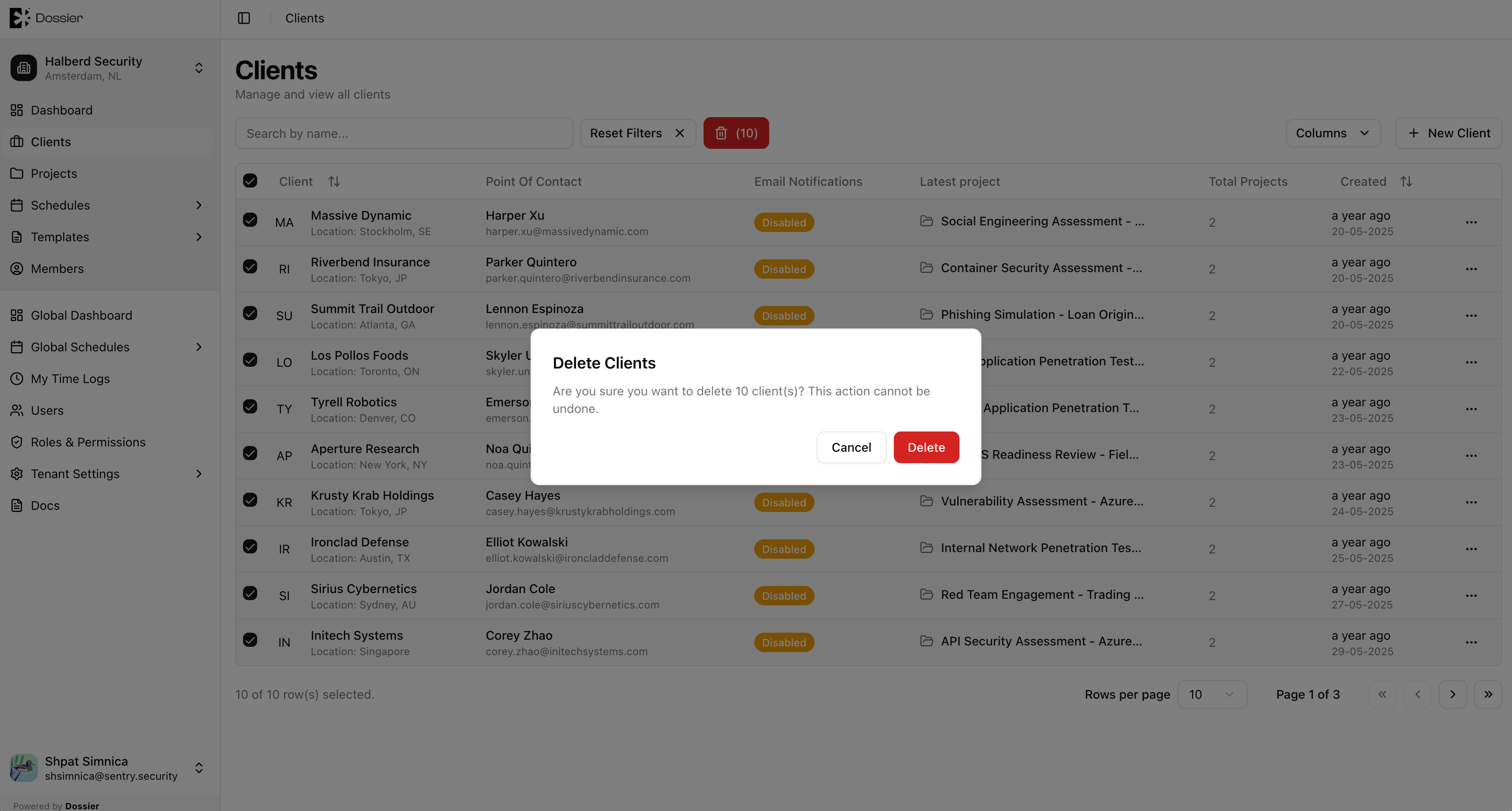
Bulk Delete
From the Clients list, select multiple clients using the checkboxes, then click the bulk delete button. Confirm in the dialog.